


Overview: This guide will walk you through everything that you can do as a Student within the PIXO Platform. As a Student, you will only have access to the Help Center and your profile. Additionally, you can also change your password or use the assisted login feature.
Related Articles:
-
Full PIXO Platform Guide (covers all Platform tabs + user roles)
Permissions
User Role Breakdown
-
Student — trains in headset and only uses the Platform to change their password
-
User — trains in headset and uses the Platform to view their own session data
-
Manager — uses the Platform to view their organization’s session data
-
Admin — uses the Platform to view their organization’s session data, manage users, create organization units/groups, and provision access to training titles
-
Superadmin — an admin who can view session data, manage users, create organization units/groups, and provision access to training titles in their own organization and in their sub organizations
Initial Login
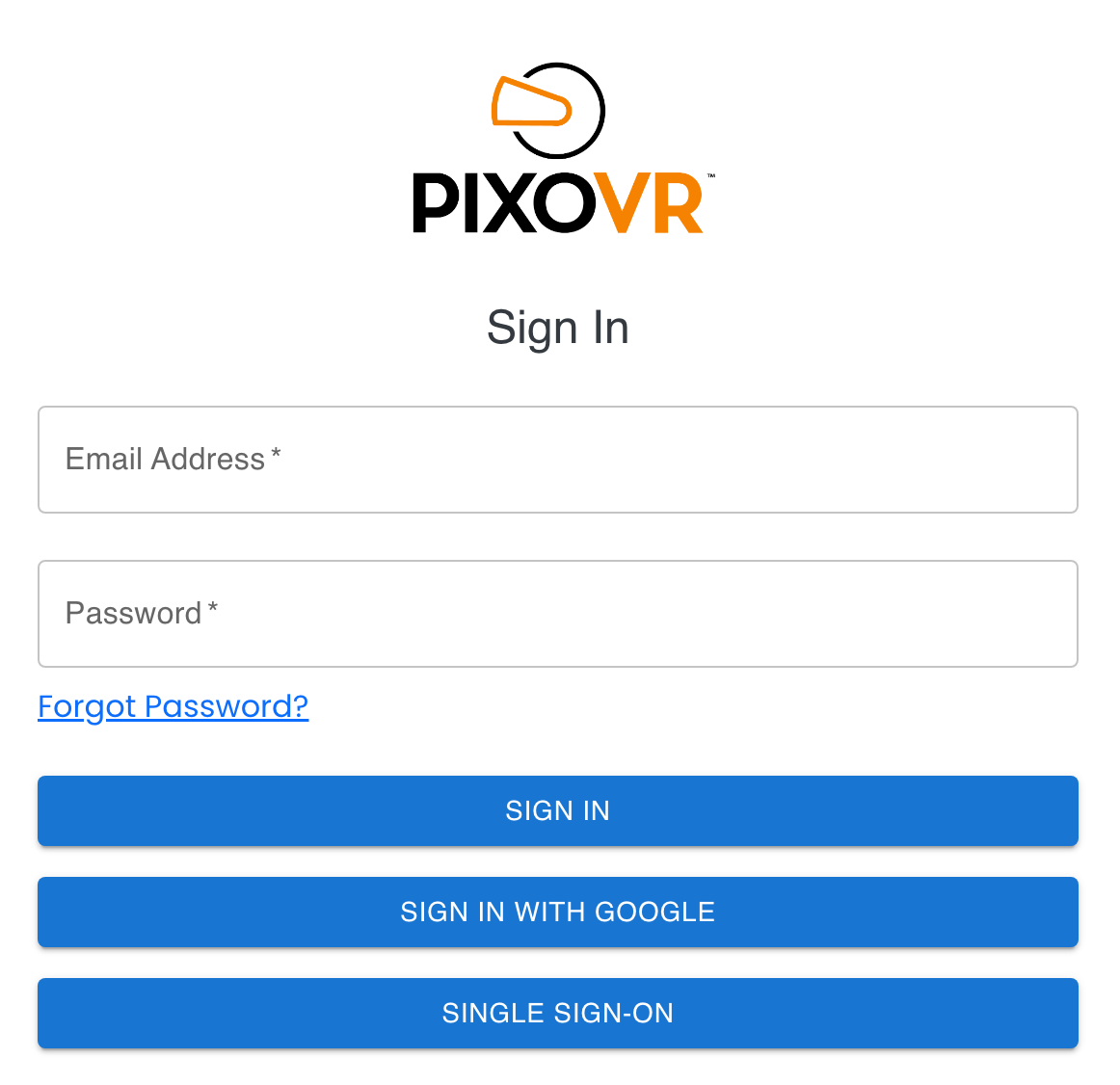
The first step is to sign in with your credentials. These credentials will be provided to you by your Training Manager or a PIXO Sales Representative.
Edit Profile
After logging in, you will see the Profile page. From here you can edit the name, email and phone number attached to your PIXO account.
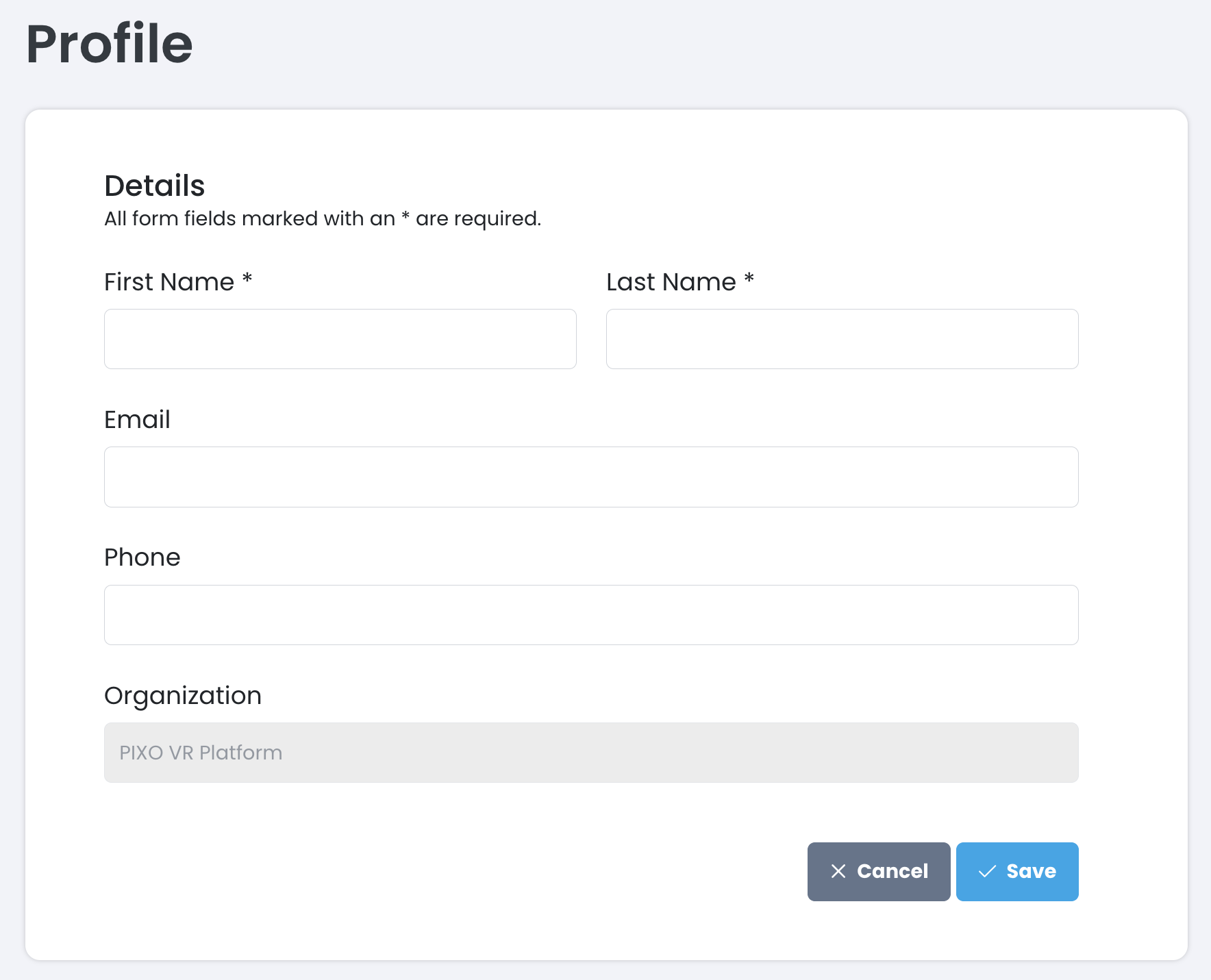
Click "Save" when finished.
Change Password
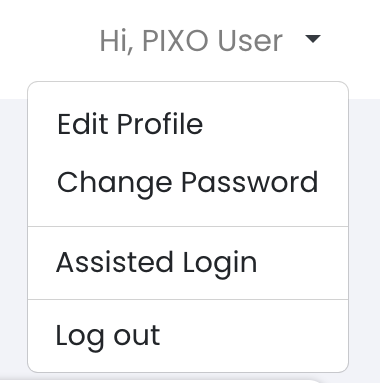
To change your password, open the "Hi, Name" menu in the top right corner and click "Change Password":
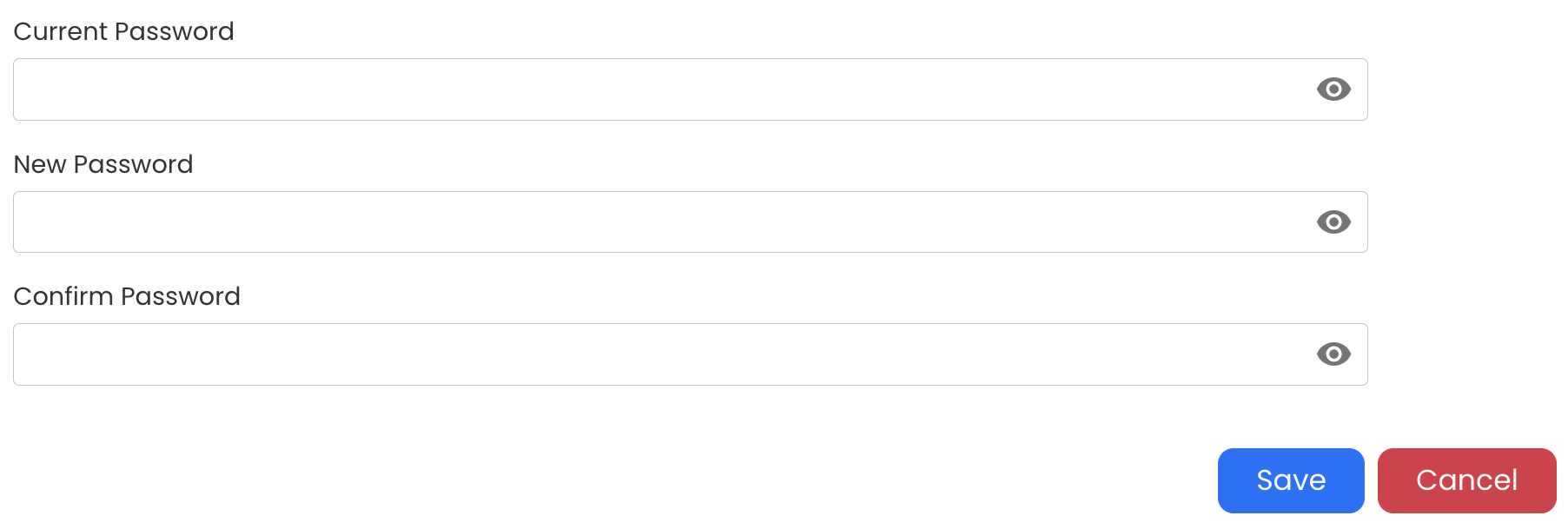
Type your current password and your new password, then click "Save":
Assisted Login
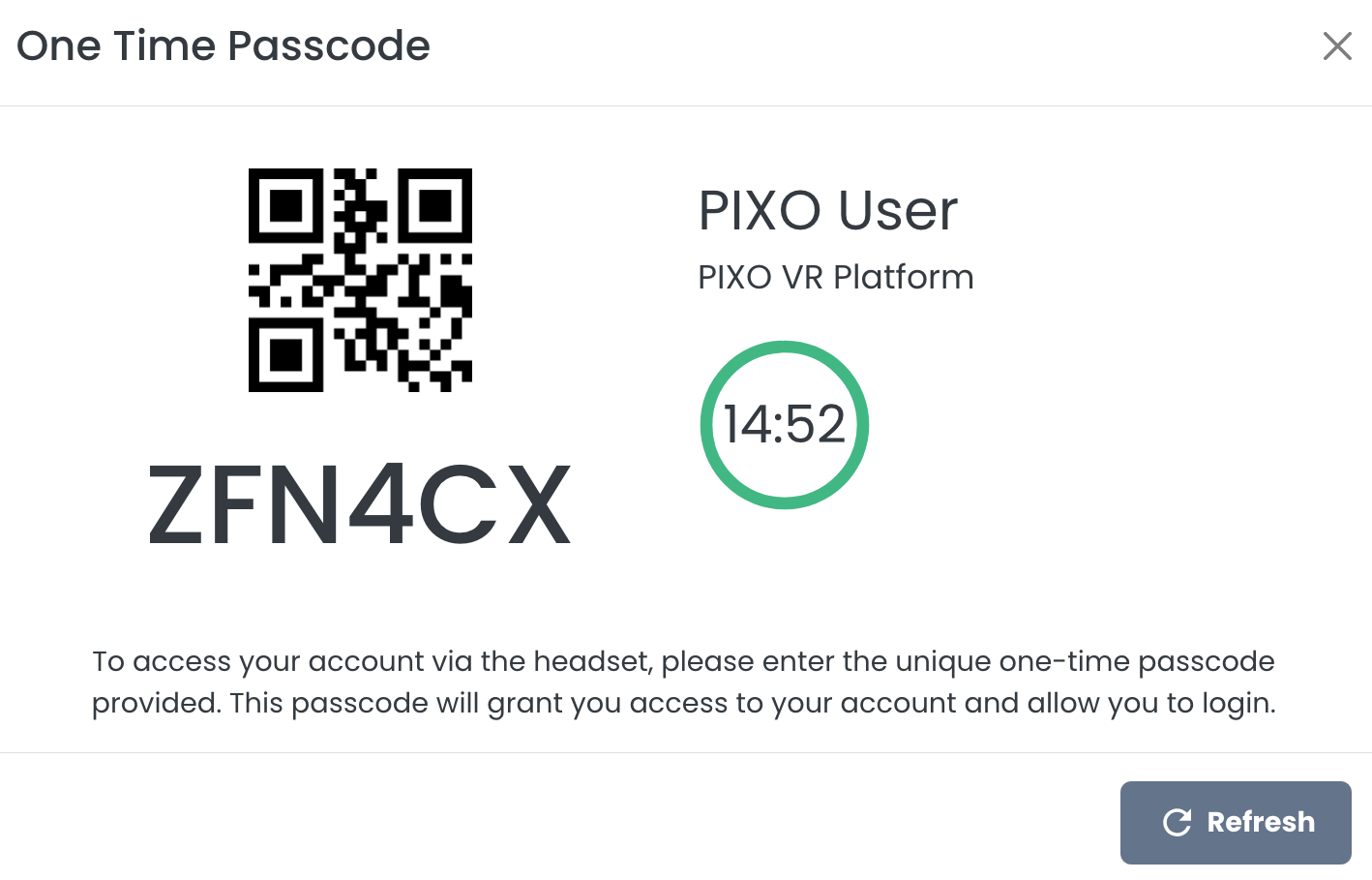
To generate a one-time passcode that you can use to login in VR without needing to type your full login credentials, select "Assisted Login" under the "Hi, Name" greeting menu:

You will have 15 minutes to enter the provided one-time passcode into the username field of the PIXO login screen in headset:
The Help Center Tab
Click the Help Center tab to access documentation regarding the PIXO platform.
Questions and Support
If you have any issues, please contact our tech support team at [email protected]

