


V1.2

In this article, you will learn how to set your PICO headset to Kiosk Mode. By using Kiosk Mode, you can limit the functionalities that users can access when using the headset by automatically starting a specific application when a user puts on the headset. The user then does not have the option to exit the application during their playthrough.
What's needed:
-
PICO Headset
-
Device must be in "Developer Mode". See this article for steps on putting a PICO headset in Developer Mode.
Kiosk Mode
STEP 1: Navigate to Pico’s settings, then scroll to and select “Developer”.
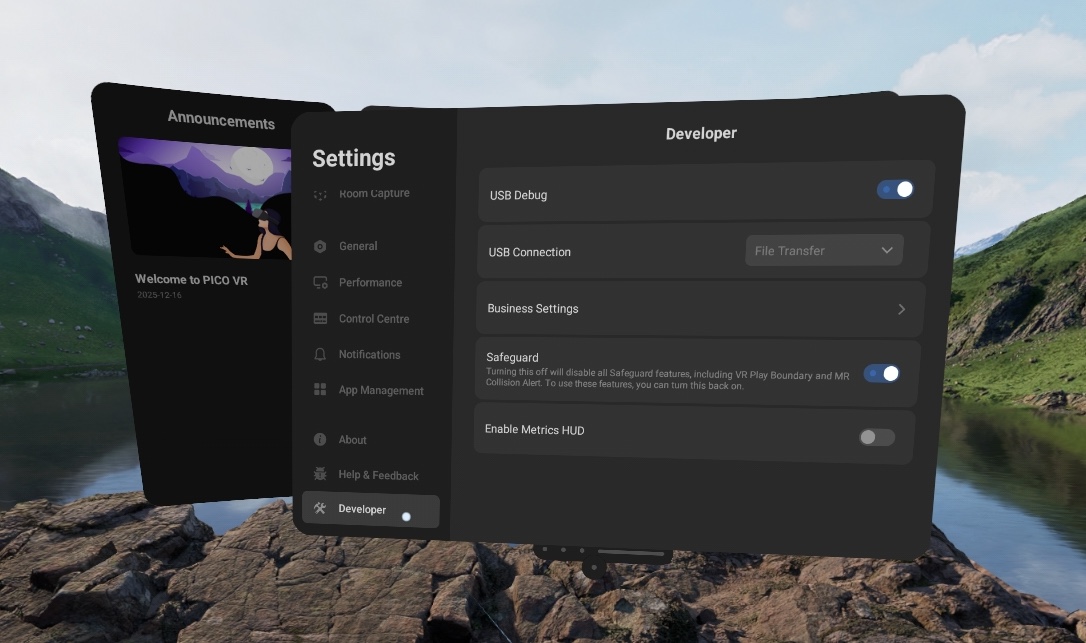
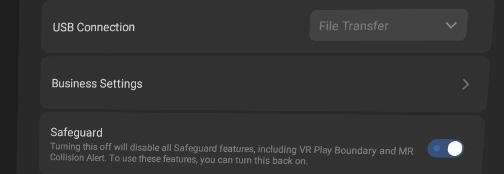
STEP 2: Select “Business Settings”.
STEP 3: Click the “Home Screen" tab.

STEP 4: From the list, select the app you would like to use in kiosk mode.
STEP 5: Restart your headset by holding down the Power Button.
The device is now in Kiosk Mode!
Questions and Support
If you have any issues, please contact our tech support team at [email protected]

