


V1.3

Overview: This guide outlines the available screencasting methods and troubleshooting tips for Meta Quest headsets.
Supported Casting Methods:
|
|
|
|
|
|
|
|
|
|
|
|
|
|
|
|
|
|
|
|
|
-
Cast to Computer Browser
-
Cast to Smart TV
-
Cast to Smart TV using Chromecast
-
Cast to Phone using the Meta Horizon App
-
Wired Casting using Meta Quest Link
Related Article:
-
Comprehensive Casting & Streaming Guide (covers all headsets + third-party tools)
Before Casting
-
Make sure your headset and casting device (PC, Phone or Smart TV) are turned on and connected to the same Wi-Fi network.
-
Ensure the headset's software is up to date:
-
Select the time on the left side of the universal menu to open "Quick settings".
-
Select "Settings" in the top right corner.
-
Under "General", select "Software Update".
-
Tip: Meta's YouTube Video on casting is here – it may also be helpful.
Casting to a Computer
Important: Ensure that the VR headset and computer are on the same Wi-Fi network.
-
On your computer, go to horizon.meta.com/casting and log in. Make sure to login to the same Meta account as your headset.
-
In headset, select the time on the left side of the universal menu to open "Quick settings".
-
Select "Cast".
-
Select "Web", then select "Next" to connect.
Your headset screen should now be duplicated to your computer browser.
Casting to a Smart TV
-
In headset, select the time on the left side of the universal menu to open "Quick settings".
-
Select "Cast".
-
Select your Smart TV from the "Nearby Devices" list, then select "Next" to connect.
-
If a permissions menu pops up in your headset, select "Allow".
Your headset screen should now be duplicated to your Smart TV.
Casting with Chromecast
-
Install and/or open Chromecast on your Smart TV. If your TV doesn't have Chromecast enabled automatically, steps for setting up a Chromecast device can be found here.
-
If your Smart TV displays a "Waiting for connection" status, your headset will be able to find the Smart TV and you can move to the next step.
-
Tip: If your TV does not display a "Waiting for connection" status, see our Troubleshooting Checklist.
-
-
In headset, select the time on the left side of the universal menu to open "Quick settings".
-
Select "Cast".
-
Select your Chromecast device from the "Nearby Devices" list, then select "Next" to connect.
-
If a permissions menu pops up in your headset, select "Allow".
Your headset screen should now be duplicated to your Smart TV.
Casting to a Phone or Tablet
-
In headset, select the time on the left side of the universal menu to open "Quick settings".
-
Select "Cast".
-
Select "Mobile".
-
Install and/or open the Meta Horizon app on your mobile phone.
-
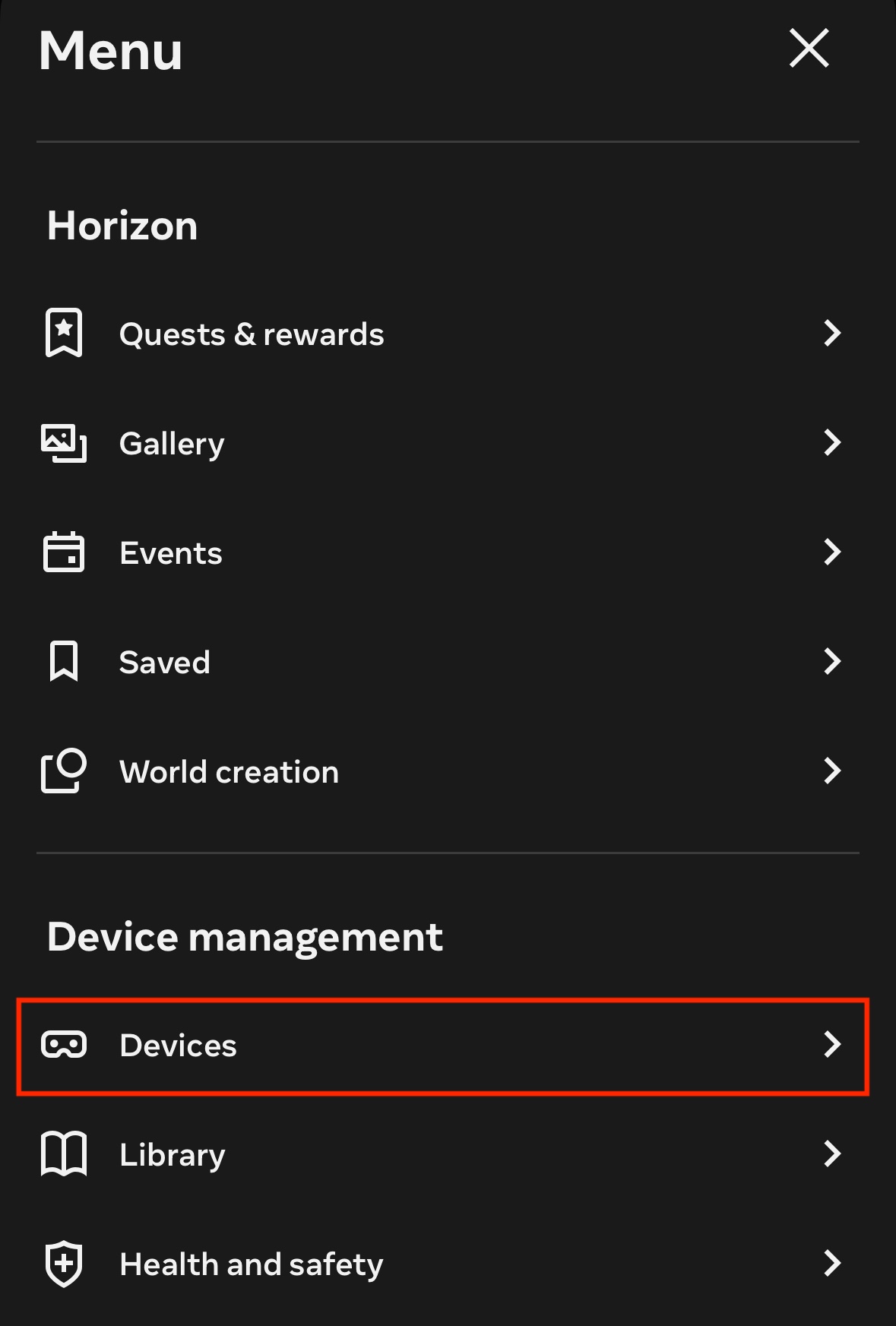
After logging in, open the three lines icon in the upper left corner:

-
Select "Devices"
-
Select "Cast".
Your headset screen should now be duplicated to your phone.
Wired Casting
Install Meta Horizon Link on your PC. Setup steps can be found here.
How to Stop Casting
-
Press the Meta button on your right controller to open the universal menu.
-
Select the time on the left side of the universal menu to open "Quick settings".
-
Select "Cast".
-
Select "Stop casting".
Troubleshooting
All Casting Methods
-
Confirm that casting device and headset are connected to the same Wi-Fi network. To check the current connection:
-
Select the time on the left side of the universal menu to open "Quick settings".
-
Select "Wi-Fi".
-
-
Check for Software Updates:
-
Open the "Quick settings" menu.
-
Select "Settings" in the top right corner.
-
Under "General", select "Software Update".
-
-
Restart your Headset and Casting Device.
-
Restart your Wi-Fi Router.
-
Try a Different Network.
-
Avoid using Wi-Fi networks that are crowded with many devices.
-
You can also place the casting device and headset closer to your Wi-Fi router to reduce signal interference.
-
-
Disable VPNs/Firewalls that Block Casting.
-
Certain mesh networks and corporate or certificate-based networks may not support casting due to blocks for security purposes. These blocks are common on home guest networks, corporate and commercial networks (e.g. at a hotel or airport).
-
This will require working with your local IT Team.
-
Casting to Browser Tips
-
Try casting to Chrome or Edge browsers, as they are often more reliable.
-
Make sure you're logged in with the same Meta account on your browser. You can log in at horizon.meta.com/casting.
If your headset is managed by ManageXR:
You can also try their version of browser casting at https://console.managexr.com/casting.
Casting to TV Tips
Chromecast:
-
Make sure your TV supports Chromecast and that Chromecast is enabled in your TV settings. Learn more about enabling Chromecast here.
-
Make sure the date and time of your Chromecast device is accurate.
-
For additional troubleshooting, visit the Chromecast help center.
If you want to cast to a TV that isn't a Smart TV:
Try casting to a browser and plug your PC into the TV with an HDMI cable.
Wired Casting Tips
-
Make sure that you've set up Meta Quest Link on your PC, and that your PC is on and connected to the same network.
-
Try plugging the USB-C 3.0 cable into a different port on your PC.
-
Try using a different USB-C cable.
Questions and Support
If you have any issues, please contact our tech support team at [email protected]

