


V2.0

Overview: See below for steps on setting up a VIVE Focus headset. This applies to Focus Vision and Focus 3 headsets.
Additionally, you can check VIVE's full setup instructions here.
Device Setup
Charge your Headset
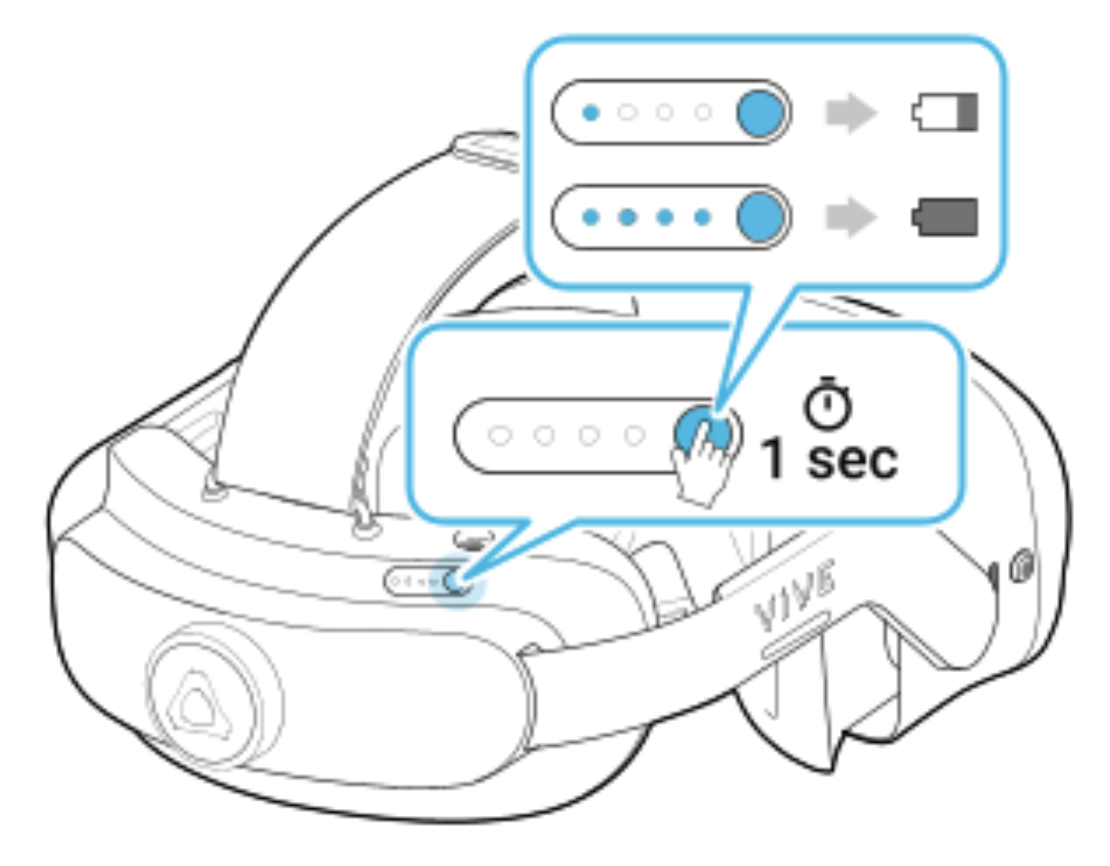
Before you turn on and start using your headset, it's recommended to fully charge it first. You can check the battery level by pressing the power button on the back of the headset.
Switching to Developer Mode
You'll need to put your headset in "Developer Mode" to set up your headset for accessing PIXO training modules.
-
Select the Vive button to pull up the Home menu
-
Select Settings > More Settings
-
Scroll down to About Device > Build Number (select 7 times)
-
You will see a message that reads, "Congratulations, you are now a Developer!"
-
This step adds a "Developer Options" field in your "More Settings" menu
-
Select "More Settings"
-
Select Security > Enable Unknown Sources
-
Select "Go Back"
-
Go to Developer Options > Enable USB Debugging
-
Select "Go Back"
-
Once in Developer Mode, you can plug your headset into a computer and begin sideloading!
Download and Install Modules
-
Connect headset to a PC using the provided cable.
-
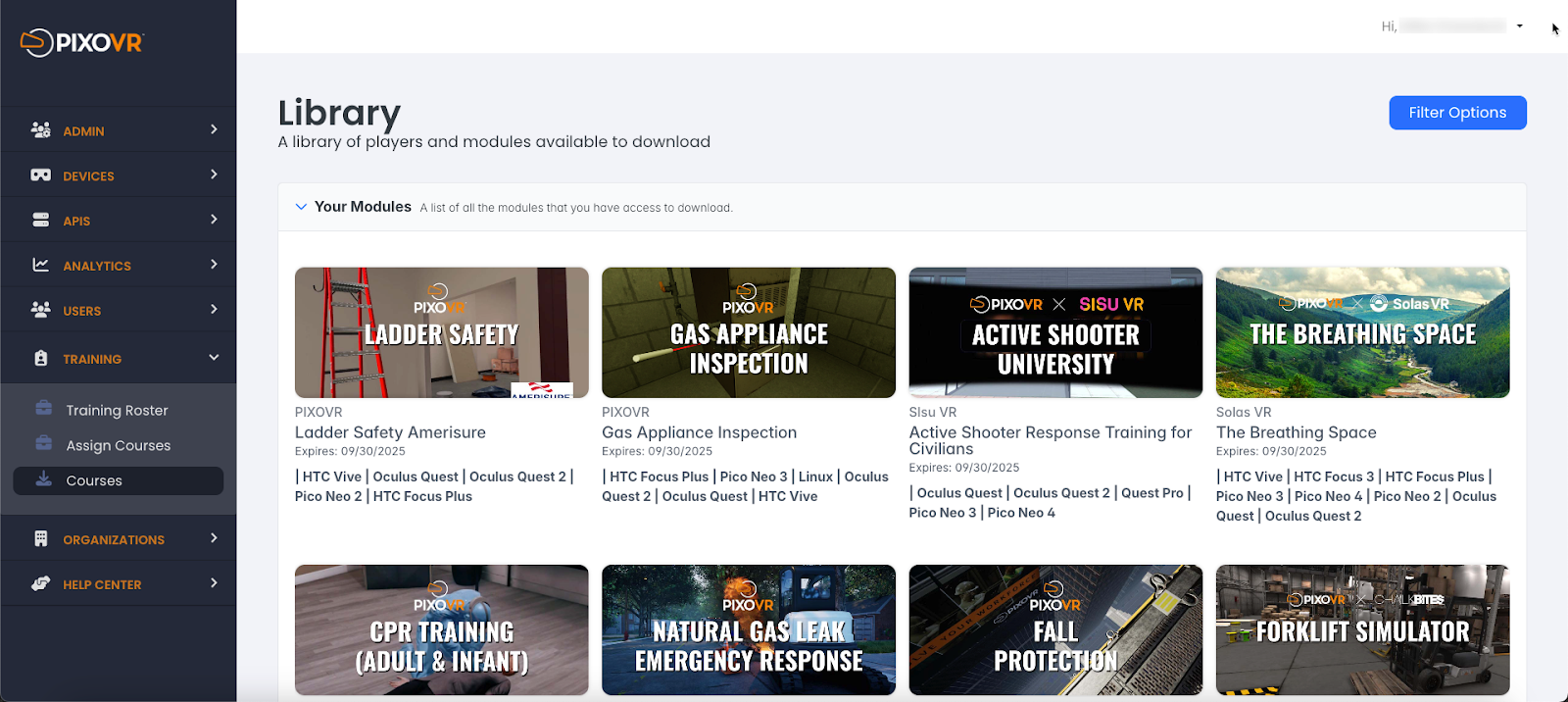
Download desired training modules from the PIXO Platform.
-
After downloading, sideload the training modules using SideQuest. For more information, see our SideQuest Guide.
Questions and Support
If you have any issues, please contact our tech support team at [email protected]

